Maintaining a computer is essential for its longevity and performance. Regular cleaning not only keeps it looking good but also helps prevent overheating and hardware issues. To safely clean and maintain a computer, one should follow specific guidelines to protect its components while ensuring optimal functionality.
Many users may neglect the interior of their machines, where dust and debris accumulate over time. Simple tasks like using compressed air to blow out dust from fans, regularly wiping down surfaces with appropriate cleaners, and checking for loose cables can make a significant difference. Establishing a maintenance routine can enhance both the computer’s performance and its lifespan.
In addition to physical cleaning, software maintenance is just as crucial. Keeping the operating system and applications updated, regularly running antivirus scans, and managing storage can help keep the computer running smoothly. By following these practices, users can enjoy a more efficient and reliable computing experience.
Essential Tools and Precautions for Safe PC Cleaning
Cleaning a computer requires specific tools and careful handling to protect both the device and the user. Proper preparation can make the process more efficient and safe, ensuring that the components are not damaged.
Gathering the Right Cleaning Supplies
To effectively clean a computer, it is crucial to gather appropriate supplies. Essential tools include microfiber cloths, which are non-abrasive and prevent scratches on surfaces.
Isopropyl alcohol, preferably at a concentration of 70% or higher, is effective for sanitizing components without leaving residue. A small spray bottle can help control the application. Other useful items are compressed air cans for dust removal and a soft brush for tight spaces.
It is advisable to avoid paper towels, which may leave lint or scratch surfaces. For screens, specialized cleaners designed for electronics should be used.
Powering Down and Unplugging Devices
Before initiating any cleaning, it is necessary to shut down the computer and unplug it from the power source. This step prevents accidental shocks and ensures that components are not live during cleaning.
Additionally, it is wise to disconnect peripherals, such as the keyboard, mouse, and any external drives. This promotes thorough cleaning and reduces the risk of damaging corded connections.
After the device is powered down, it is beneficial to allow time for components to cool down. Warm parts may be more fragile and susceptible to damage.
Static and Component Safety Best Practices
When cleaning a computer, static electricity poses a significant risk to sensitive components. To minimize this risk, users should ground themselves by touching a metal surface before handling internal parts.
Wearing an anti-static wrist strap offers further protection during cleaning. It is also advised to work in a static-free environment, avoiding carpets and ensuring that clothing does not generate static buildup.
Handling components by their edges rather than touching circuitry decreases the chance of damage. Proper care must be taken with connectors and ports, as excessive force can break them. Following these practices promotes safe and effective cleaning.
Physical Cleaning: Safely Removing Dust and Dirt
Keeping a computer clean is essential for optimal performance and longevity. Regular physical cleaning helps prevent dust buildup and ensures proper airflow, ultimately reducing overheating issues.
Cleaning the Computer Case and Internal Components
To clean the computer case and internal components, start by shutting down the machine and unplugging it from the power source. It is crucial to wait a few minutes for any residual charge to dissipate.
Using a microfiber cloth, dampen it slightly with isopropyl alcohol. Carefully wipe down the exterior of the case, focusing on areas where dirt accumulates, like vents and USB ports.
For internal cleaning, carefully remove the side panel using a screwdriver. Use compressed air to blow out dust from fans and other components. Hold the can upright to avoid moisture build-up. When touching any internal parts, ensure to ground oneself to avoid static damage.
Clearing Fan Vents and Airflow Pathways
Fan vents can trap dust, impeding airflow and causing overheating. Regularly checking and cleaning these areas is crucial.
To clean fan vents, use a microfiber cloth lightly moistened with isopropyl alcohol to wipe down the surfaces. Compressed air can also be directed at the vents to remove stubborn dust.
Turn the computer on after cleaning to ensure fans operate smoothly. If the airflow seems restricted, additional disassembly might be necessary to clean internal fans thoroughly. Keeping these pathways clear enhances system efficiency and prolongs hardware lifespan.
Wiping Down Screens, Monitors, and Exteriors
Cleaning screens and monitors requires a gentle touch. Use a microfiber cloth specifically designed for electronics to avoid scratches.
For screens, dampen the cloth with water or a mixture of water and isopropyl alcohol. Gently wipe in circular motions to remove fingerprints and smudges. Avoid applying liquid directly onto the screen.
When cleaning external surfaces, ensure to use a soft cloth to prevent scratches. Pay attention to keyboard and mouse surfaces, where oils and grime tend to accumulate. Keeping these areas clean improves hygiene and user experience.
Maintaining Peripherals for Optimal Performance
Regular upkeep of computer peripherals is crucial to enhance performance and longevity. This section provides practical tips on cleaning keyboards, mice, and managing cables and ports effectively.
How to Clean Keyboards Effectively
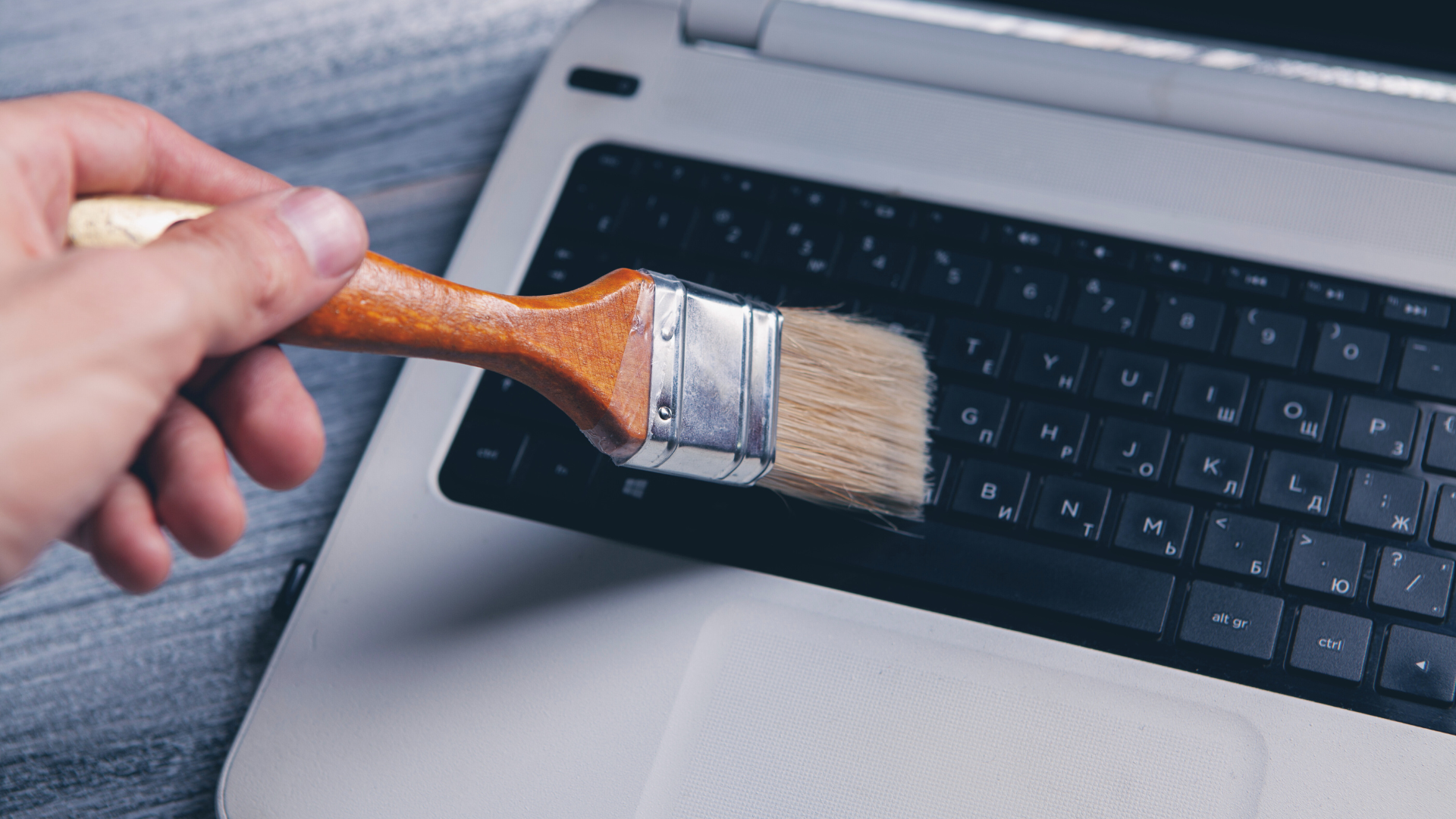
Cleaning a keyboard requires care to avoid damage. First, disconnect it from the computer. For a thorough clean, turn it upside down and gently shake to dislodge debris.
Use compressed air to blow out dust and crumbs. Pay close attention to areas between keys. For stubborn stains, lightly dampen a microfiber cloth with isopropyl alcohol and wipe the keys. Avoid excess moisture to prevent liquid damage.
Consider removing keycaps for a deeper clean, if possible. This step requires caution and tools, as not all keyboards allow for it. Reattach everything securely before reconnecting the keyboard.
Safe Techniques for Cleaning Your Mouse
To maintain a mouse, disconnect it from its power source. Use a microfiber cloth to wipe the body, ensuring it’s free from oil and dirt.
For optical mice, clean the sensor area gently with a cotton swab slightly moistened with alcohol. This step removes grime affecting tracking.
For adjustable sensitivity mice, check for an additional button or surface that may harbor dirt. Regularly clean mouse feet to ensure smooth gliding on surfaces. Avoid strong cleaners, as they can damage the mouse’s finish.
Proper Maintenance of Cables and Ports
Cables often suffer wear and tear, leading to connectivity issues. Examine cables regularly for fraying or kinks. Use cable organizers to prevent tangling and damage.
For ports, ensure they are free from dust and lint. A can of compressed air can help clean ports without damaging them. For stubborn debris, a soft brush or cotton swab is effective.
Keep cables straight and avoid wrapping them tightly. This practice minimizes strain on connectors. Properly managing cables contributes to a cleaner workspace and can extend the life of peripherals.
Digital Maintenance: Optimizing and Cleaning Your PC’s Software
Maintaining a computer’s software is vital for optimal performance. Attention to disk cleanup, managing updates, and regular backups enhances efficiency and security.
Running Disk Cleanup and Freeing Up Space
Disk cleanup is an essential routine for any PC user. It removes unnecessary files that can clutter the system, such as temporary files, cached data, and system logs. Windows operating systems have a built-in Disk Cleanup tool accessible via the Start Menu.
To execute disk cleanup:
- Open File Explorer.
- Select This PC.
- Right-click on the C: drive and choose Properties.
- Click on Disk Cleanup and select the files to delete.
Freeing up space not only enhances speed but also prolongs hard drive life. A good practice is to keep at least 15-20% of the hard drive free.
Managing System Updates and Startup Programs
Regular system updates are critical for security and functionality. They ensure that the software is up-to-date with the latest features and patches.
To manage updates:
- Navigate to Settings > Update & Security.
- Enable automatic updates for best results.
- Schedule updates for off-peak hours to minimize disruption.
Startup programs can significantly affect boot time. Managing these can improve responsiveness. Task Manager provides easy access:
- Press Ctrl + Shift + Esc.
- Go to the Startup tab.
- Disable unnecessary programs.
This ensures only essential applications launch at startup.
Regular Backups and Security Scans
Regular backups are a safeguard against data loss. Using tools like Windows Backup or third-party software can automate this process.
It’s recommended to back up data:
- Daily or weekly, depending on usage.
- Use external drives or cloud services for secure storage.
Security scans protect against malware and vulnerabilities. Windows Defender offers built-in scanning features.
Users should perform the following:
- Open Windows Security.
- Select Virus & threat protection.
- Run a quick or full scan regularly.
This will help identify and remove harmful software, keeping the system secure.